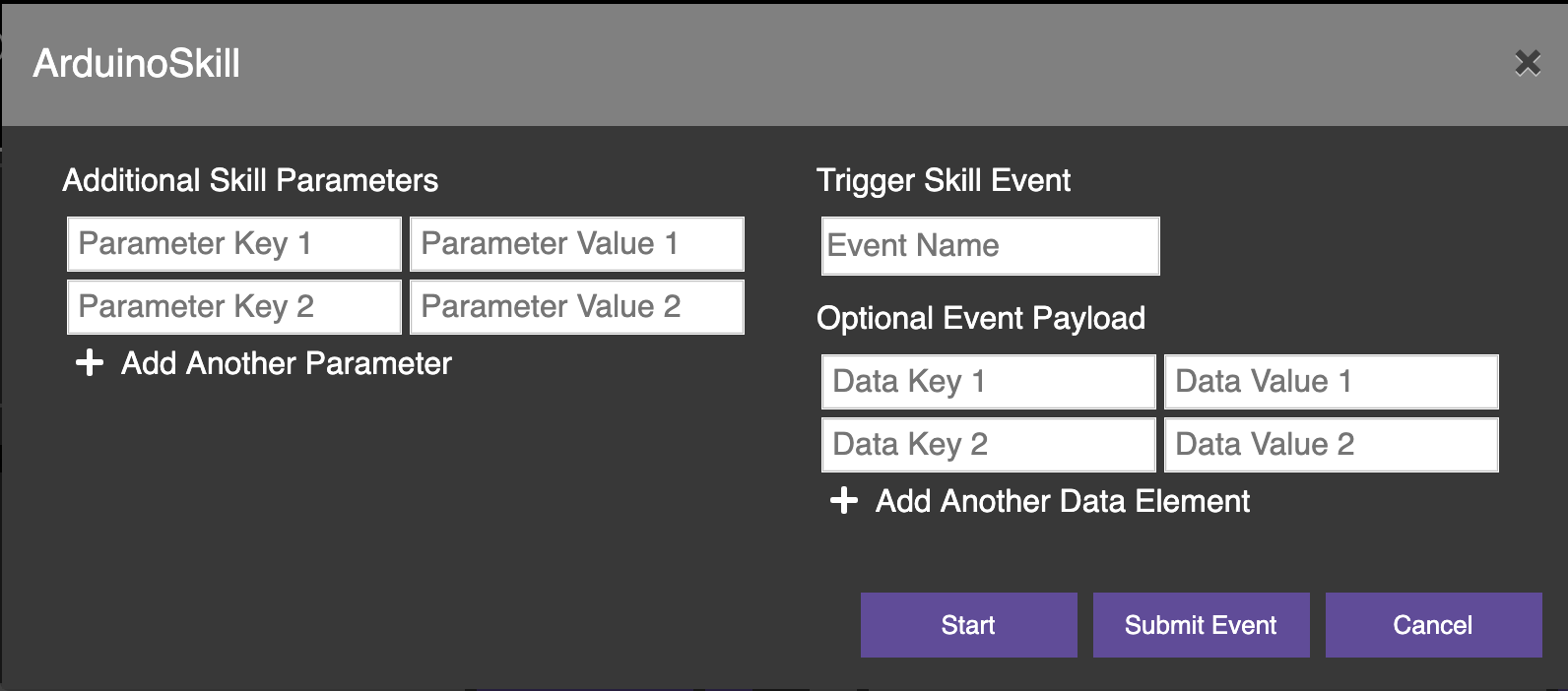
Skill Runner
The Misty Skill Runner web tool is a graphic interface for some of the skill-management actions that you would otherwise need to handle via a REST client.
Setting up Skill Runner
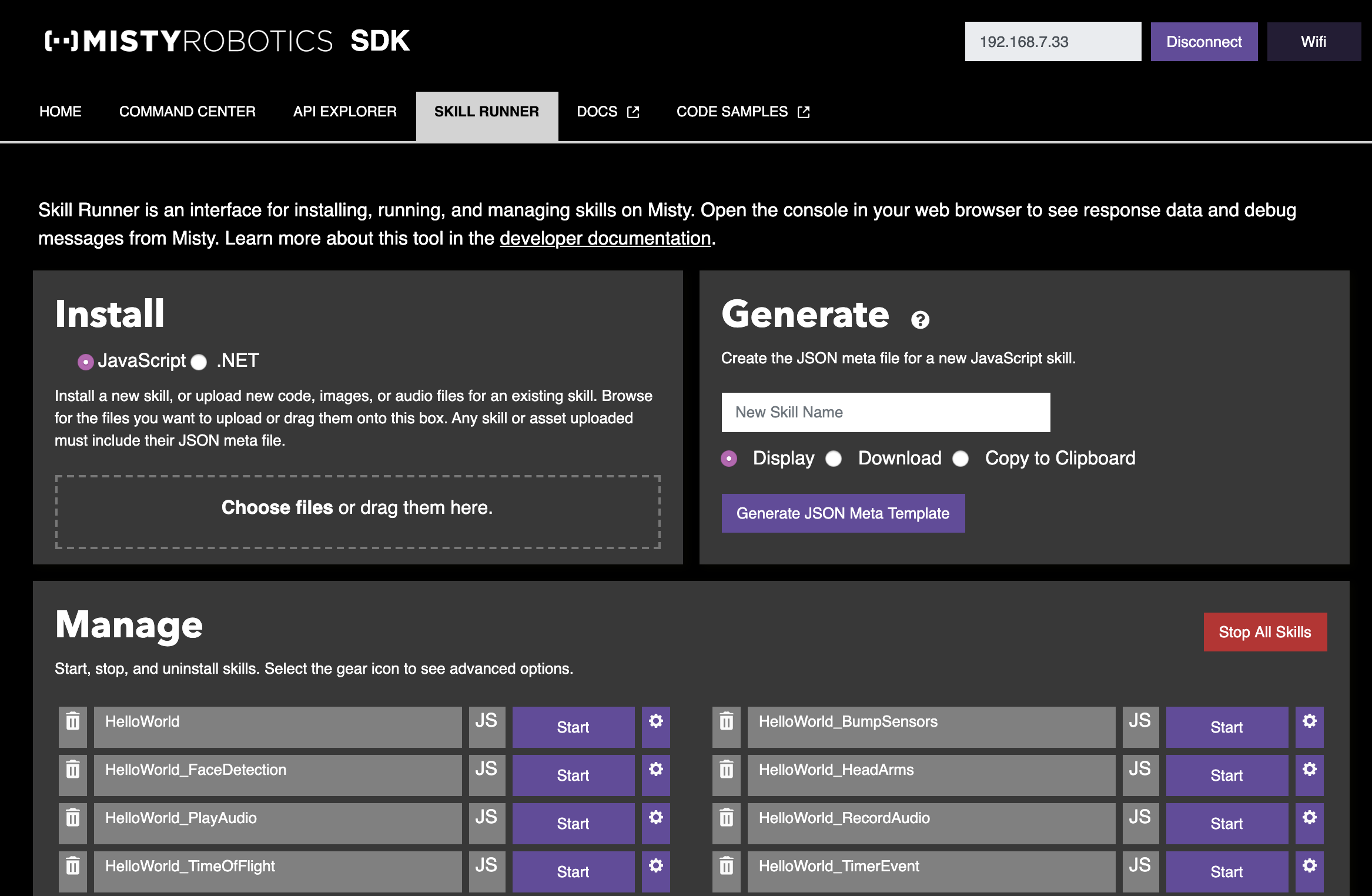
When using Skill Runner, make sure your computer and Misty are connected to the same Wi-Fi network. Follow these steps to connect Misty to Skill Runner:
- Open Skill Runner in a new browser window.
- Enter Misty's IP address in the Robot IP Address field at the top of the page and select Connect.
When Misty connects, the text on the button displays Connected and the Manage section populates with the skills currently installed on your robot.
Viewing Debug Messages (and Other Skill Data)
When Misty connects to Skill Runner, the web page subscribes to SkillData events through a WebSocket connection to Misty. SkillData event messages include debug messages, error messages, and other data on-robot skills publish during skill execution. When you run a skill from the Skill Runner page, these messages print to the console in your web browser.
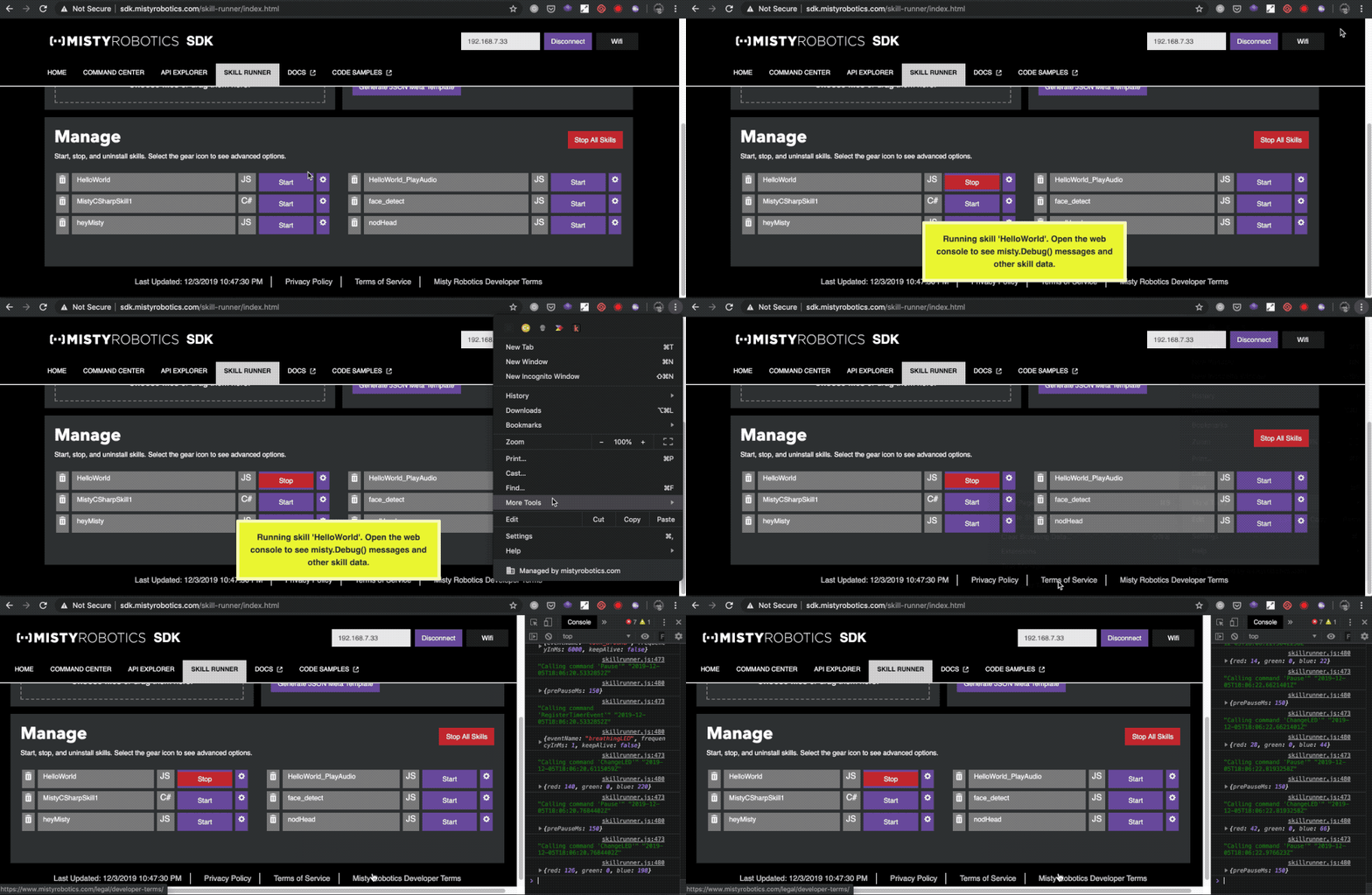
We recommend using Skill Runner in Chrome browsers for best results. To open the web console in Chrome, use:
- Ctrl + Shift + J (Windows/Linux)
- Cmd + Option + J (Mac)
Installing Skills with Skill Runner
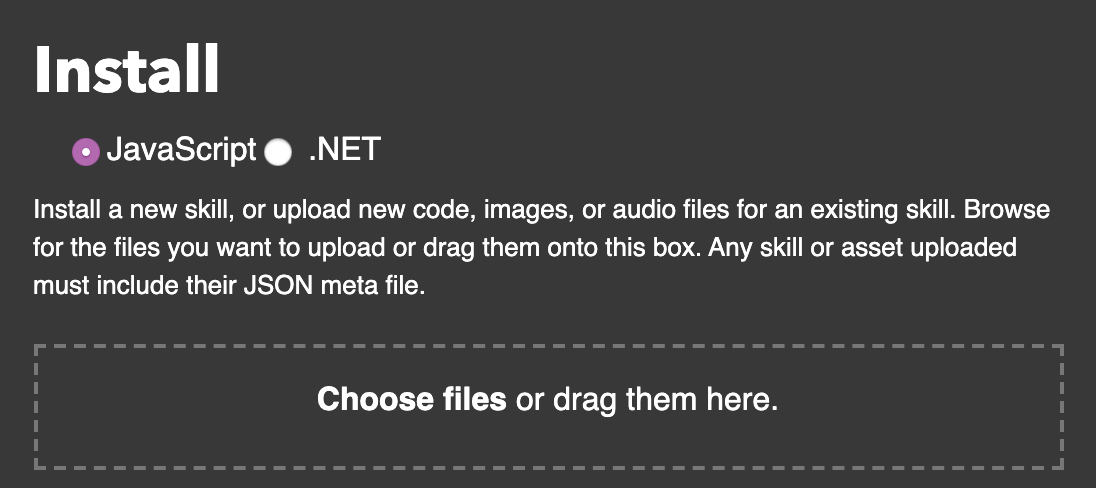
Use the Install interface to install and modify Misty's on-robot skills.
Uploading a New Skill
To upload a new skill, drag-and-drop your skill files onto the box, or click the box to find the files in your computer's file system.
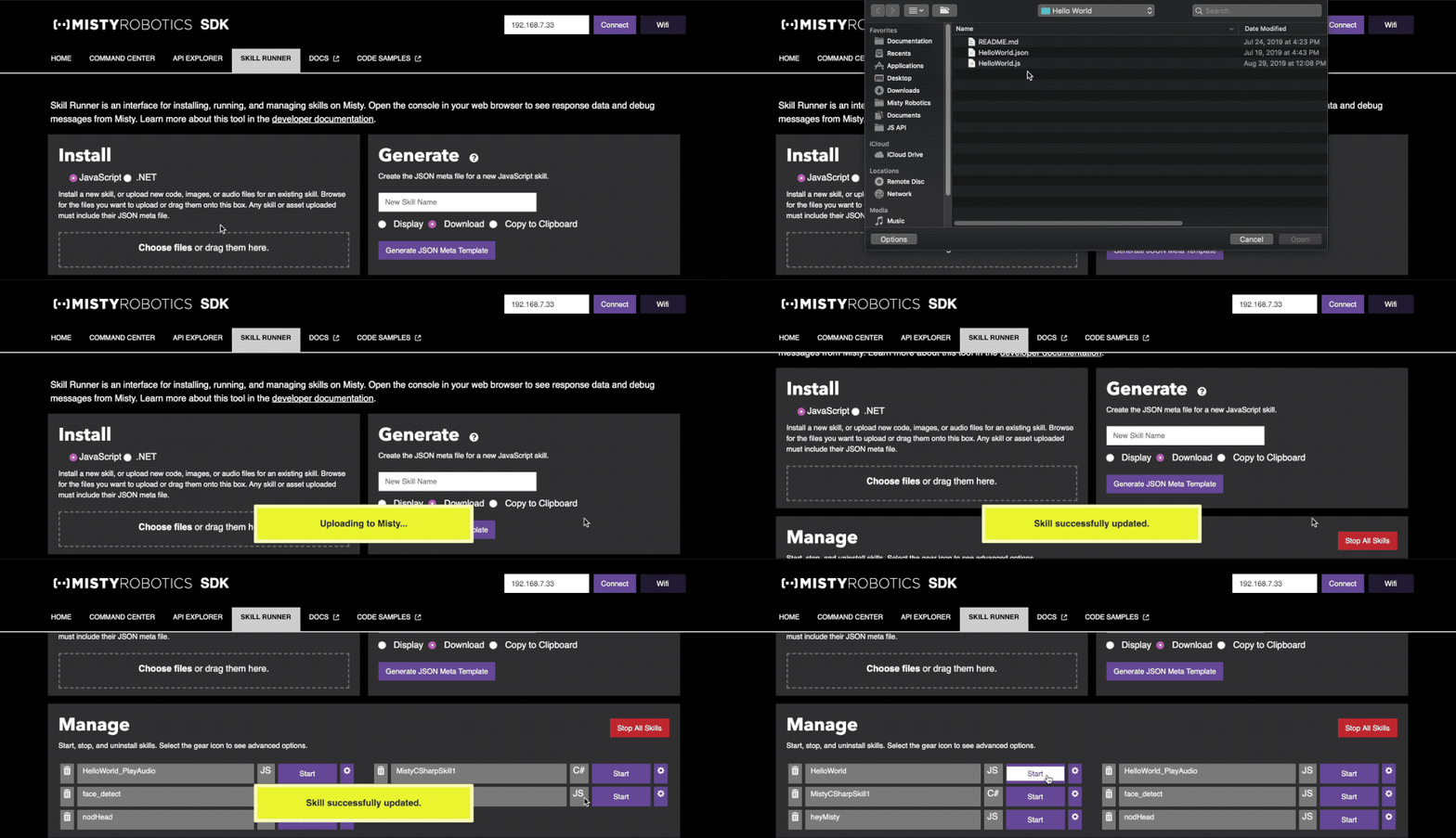
Important! When you install a new skill on Misty, you must upload the JavaScript code file and the JSON meta file at the same time. You can upload image and audio assets associated with a skill by including these asset files when you upload the skill.
Updating an Existing Skill
To update the code for an existing skill, or to associate new image and audio assets with that skill, upload these files alongside the JSON meta file for that skill. Misty uses the meta file to identify which existing skill the new files belong to.
Note: When updating an existing skill, make sure the JavaScript code file and the JSON meta file you upload use the same name as the original skill files.
Generating a JSON Meta File
You can use the Skill Runner to generate JSON meta files for your skills. The Skill Runner Generate interface automatically populates various fields in the meta file and associates a randomized 128 bit GUID with the UniqueID parameter. For more information about meta files, see JavaScript SDK Architecture.
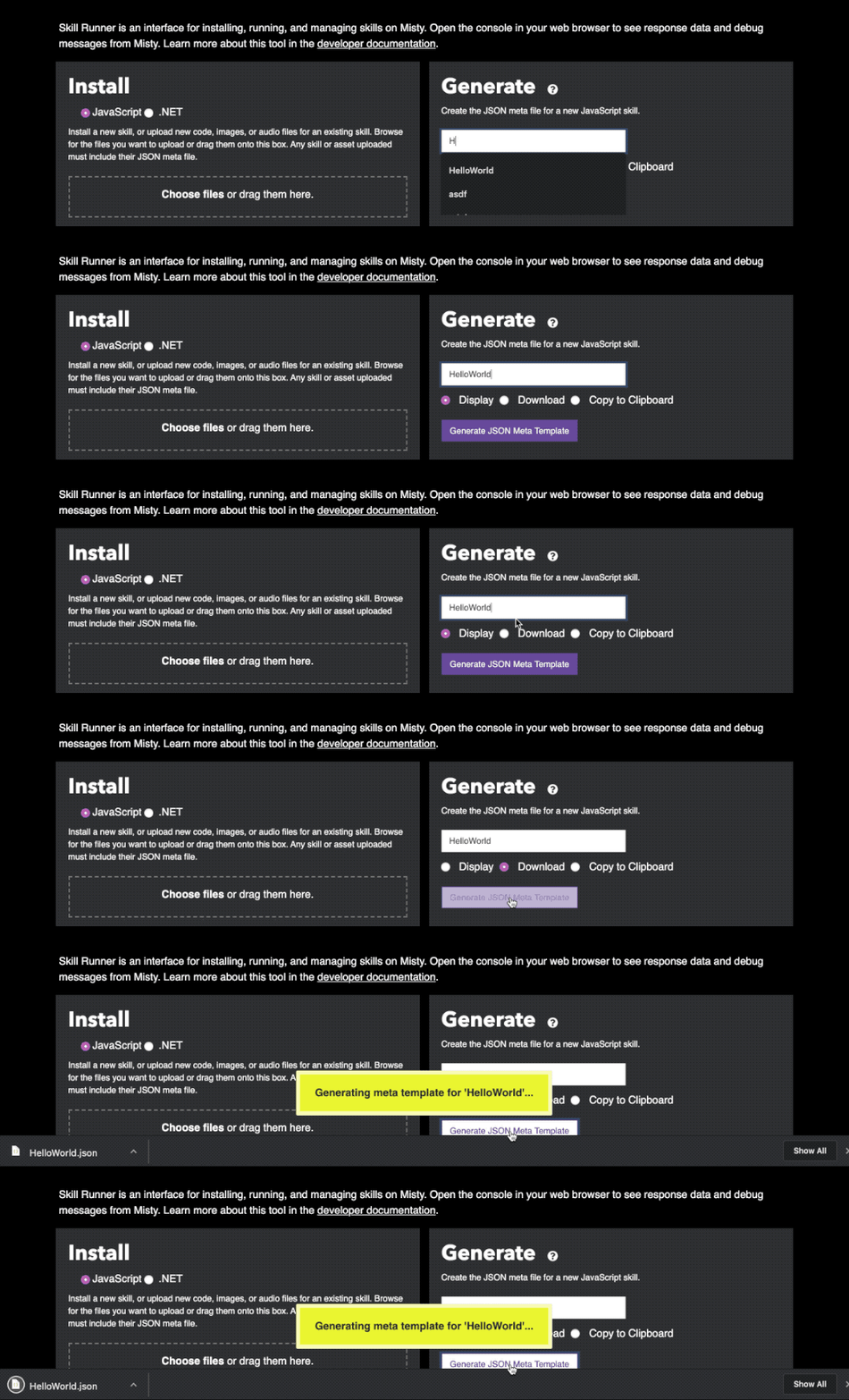
To generate a meta template for your skill:
- Enter your skill's name.
- Choose Display to view the file's contents in a modal on the Skill Runner page, or choose Download to download the
.jsonfile to your computer. - Click Generate JSON Meta Template.
Starting, Stopping, and Deleting Skills
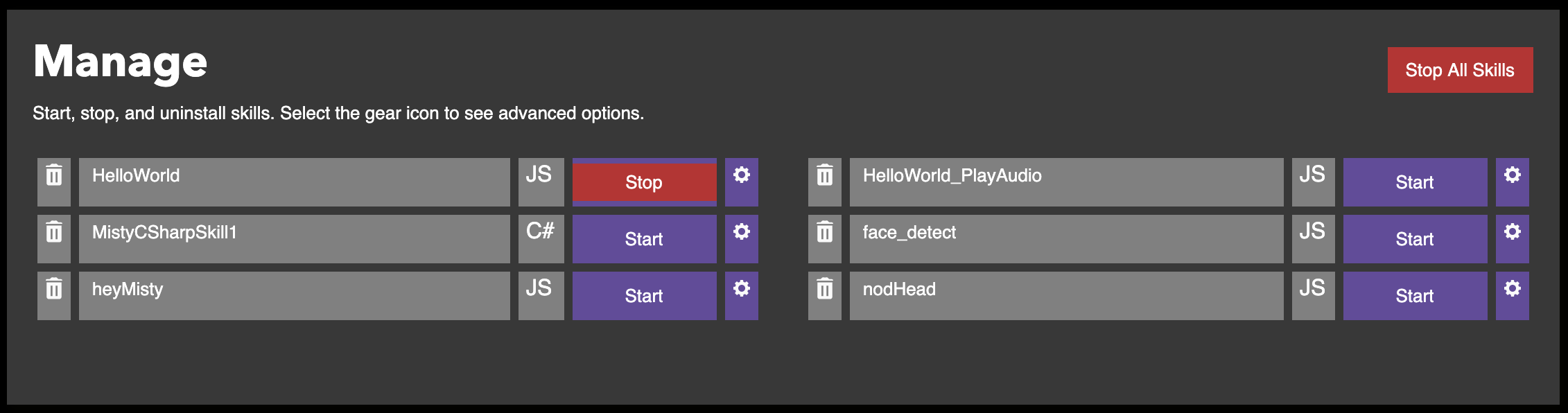
Use the Manage interface to start, stop, and uninstall Misty's skills. The Manage section automatically populates with a list of the skills on your robot when you connect Misty to the Skill Runner page.
Starting a Skill
To start a skill, select the Start button next to the skill's name.

Stopping a Skill
When a skill is running, the Start button turns red and displays Stop. Click this button to stop the skill.

Uninstalling a Skill
To uninstall a skill, select the Delete button next to the skill's name.

Advanced Options
To view the Advanced Options for a skill, select the Advanced Options button.

You can use the advanced options interface to start a skill with additional parameters that aren't specified in the skill's meta file, or to send a user event with a specific payload to the skill.